Versalink
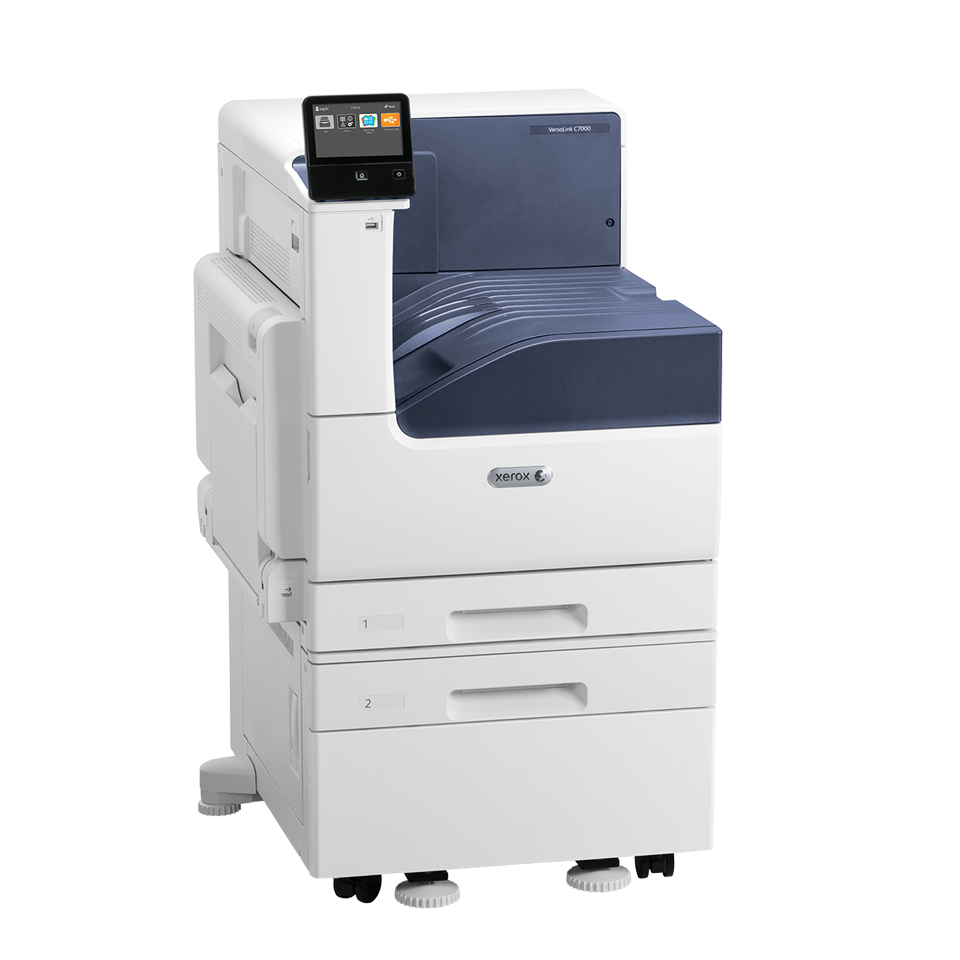
C1422: Xerox VersaLink C7030 Printer
The Xerox VersaLink C7030 is a colour printer located in Building C, room C1422.
Click here for the Versalink overview.
Printing to the Versalink from your Mac in Adobe Acrobat
- Click "File," then "Print." Or, press ⌘ + P on your keyboard to bring up the print menu.
- Select "Versalink" from the printer menu.
- Deselect "Choose paper source by PDF size."
- Click "Page Setup" at the bottom.
- Choose the correct printer and paper size and click "OK."
- To access special features and print double sided, click "Printer" at the bottom of the main print screen.
- Turn Double-sided on.
- Under "Printer Options," select "Xerox Features" for extra options if needed.
- Click "OK" and "Print."
Click here for how to print on the Versalink.
Printing on Cardstock from the Versalink
- Place your sheet of cardstock in the bypass tray.
- Confirm the correct paper type on the control panel.
- To choose the bypass tray on your Mac, click on "Printer" in the main print menu.
- Click "Printer Options."
- Click "Paper Feed."
- From the dropdown, select "Bypass Tray."
- click Xerox Features, under "paper" go to "other type" and click cardstock.
Scanning with the Versalink
Click here for how to scan using the Versalink.
- To scan to your email address, press the "Scan-To" button on the control panel.
- Load your page in the flat bed or document feeder.
- Type in your email address.
- Scroll down for more options such as file type, DPI, etc..
- Press the scan button at the top.
- Check your email.