PrimeLink C9265
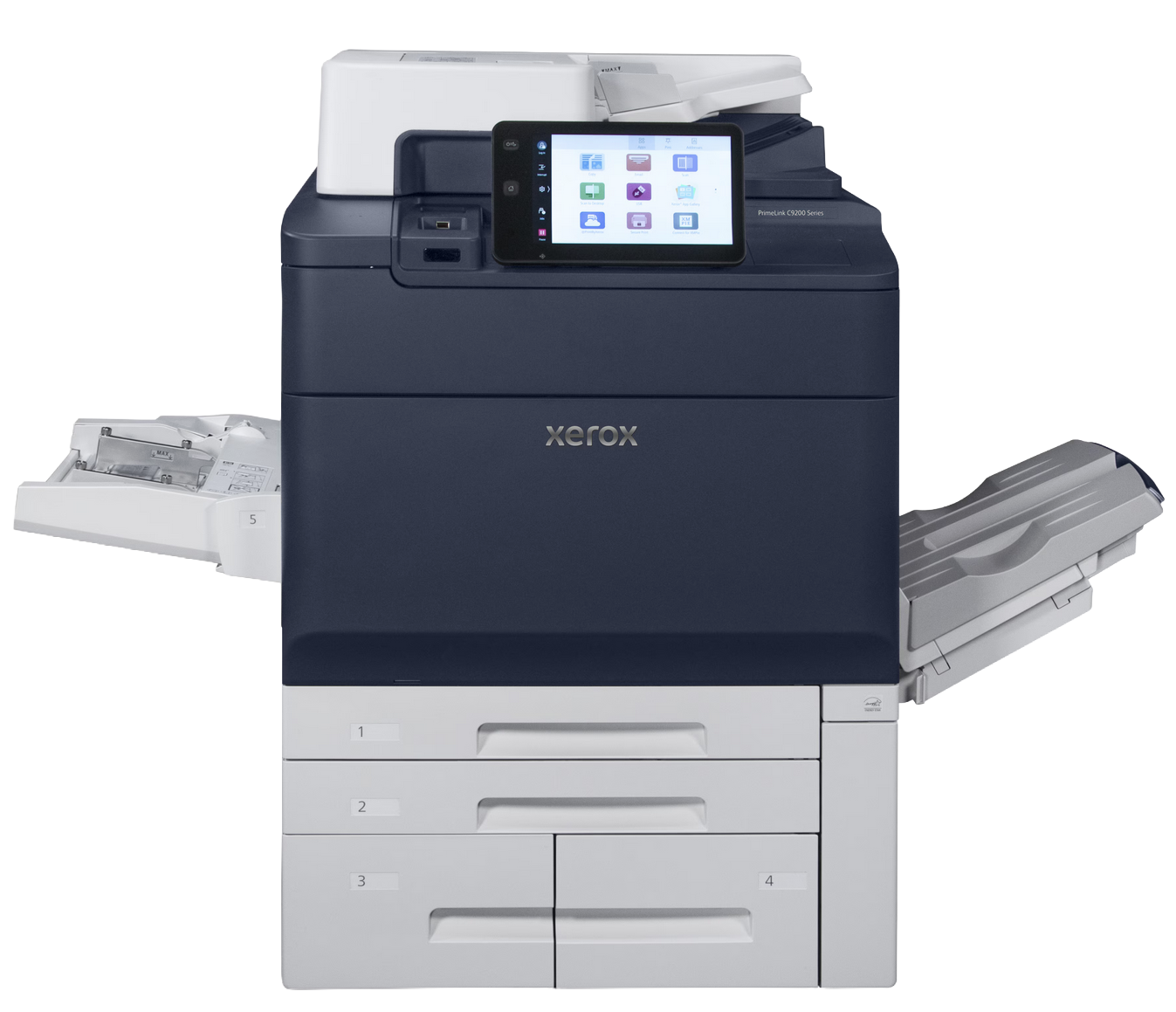
PrimeLink C9265
GDD's main colour printer, the Xerox PrimeLink C9265, is located in Building C, room C1423.
You must watch these videos before printing to the Primelink.
HOW TO AVOID PAPER JAMS
Printing to the Primelink from your Mac in Adobe Acrobat
Click here for a video tutorial on how to send a print to the Primelink.
- Click "File," then "Print." Or, press ⌘ + P on your keyboard to bring up the print menu.
- Select "Primelink" from the printer menu.
- Deselect "Choose paper source by PDF size."
- Click "Page Setup" at the bottom.
- Choose the correct printer and paper size and click "OK."
- Back in the main print screen, click "Printer" at the bottom.
- Click "Printer Options" and then "Fiery Features."
- Click "Full Properties"
- Under the "Home" tab ensure your paper size is correct
- If you want to print double sided, choose Duplex and select top-top or top-bottom, depending on your file.
- Click "OK" and "Print."
To release your print job, walk over to the printer:
Click here for a video tutorial on how to release your print.
- On the printer's home screen, press the orange "Fiery" button on the main panel. You may need to press the home button first.
- Press the "Held Jobs" Tab.
- Find your print job in the list and hit "Print".
- If prompted to log in, select "Operator" and press "Log In." There is no password.
Printing on Cardstock on the PrimeLink
Click here for a video tutorial on how to print on cardstock.
Click here for a video tutorial on how to load cardstock.
When printing on cardstock you Must Select the Heavyweight 4 preset when loading the cardstock in the bypass tray.
- Load your cardstock in the bypass tray.
- It will prompt you for paper size, weight, and the correct paper orientation. For cardstock choose Heavyweight 4, otherwise select plain.
- From your Printer menu, click Printer Options and then Paper Feed, select "bypass tray (5)" located in the print options.
- Go to the printer and release the print as normal.
Printing a Booklet and Using the PrimeLink Finisher
Click here for a video tutorial on how to print a booklet and use the finisher.
To download Booklet printing instructions click Here