Konica
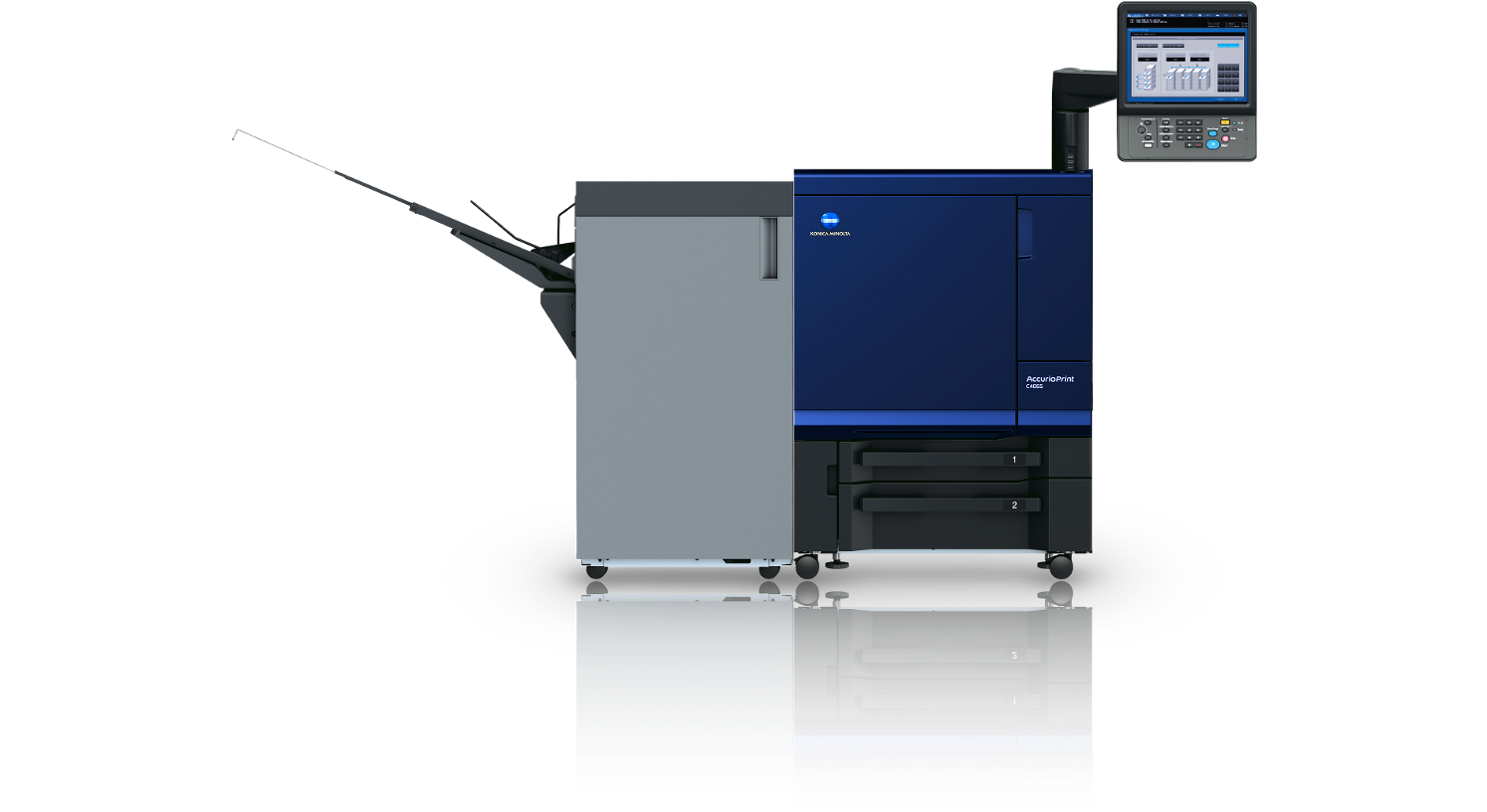
C1423: Konica AccurioPrint C4065
GDD's main colour printer, the Konica AccurioPrint C4065, is located in Building C, room C1423.
Click here for a Konica Overview video.
Printing to the Konica from your Mac in Adobe Acrobat
Click here for a video tutorial on how to send a print to the Konica.
- Click "File," then "Print." Or, press ⌘ + P on your keyboard to bring up the print menu.
- Select "Konica" from the printer menu.
- Deselect "Choose paper source by PDF size."
- Click "Page Setup" at the bottom.
- Choose the correct printer and paper size and click "OK."
- Back in the main print screen, click "Printer" at the bottom.
- Click "Printer Options" and then "Fiery Features."
- Select the correct paper size again and ensure "Two Way Communication" is selected. You can also choose to print double sided by turning "Duplex" on.
- Click "OK" and "Print."
To release your print job, walk over to the printer:
Click here for a video tutorial on how to release your print.
- On the printer's screen, press "Controller" located at the bottom.
- If prompted to log in, select "Operator" and press "Log In." There is no password.
- Press "Waiting Jobs."
- Press "Held Jobs."
- Find your print job in the list and hit "Print" after confirming that the paper size you need is in one of the trays.
Printing on Cardstock from the Konica
Click here for a video tutorial on how print on cardstock.
When printing on cardstock you Must Only use the bypass tray.
- Load your cardstock in the bypass tray.
- From your print menu, make sure to select "bypass tray" located in the "Fiery Features" menu before you hit print.
- Go to the printer and release the print as normal.
Printing a Booklet and Using the Konica Finisher
Click here for a video tutorial on how to print a booklet and use the finisher.
warning
Cancelling Jammed Prints on the Konica
To cancel a print that has an error, press the red Stop button on the machine and click "Cancel" on the screen.
Not all errors are a physical paper jam. The most common error is that the paper size you requested is not in any of the trays. Before releasing your print, ensure the paper size you need is in one of the trays.